
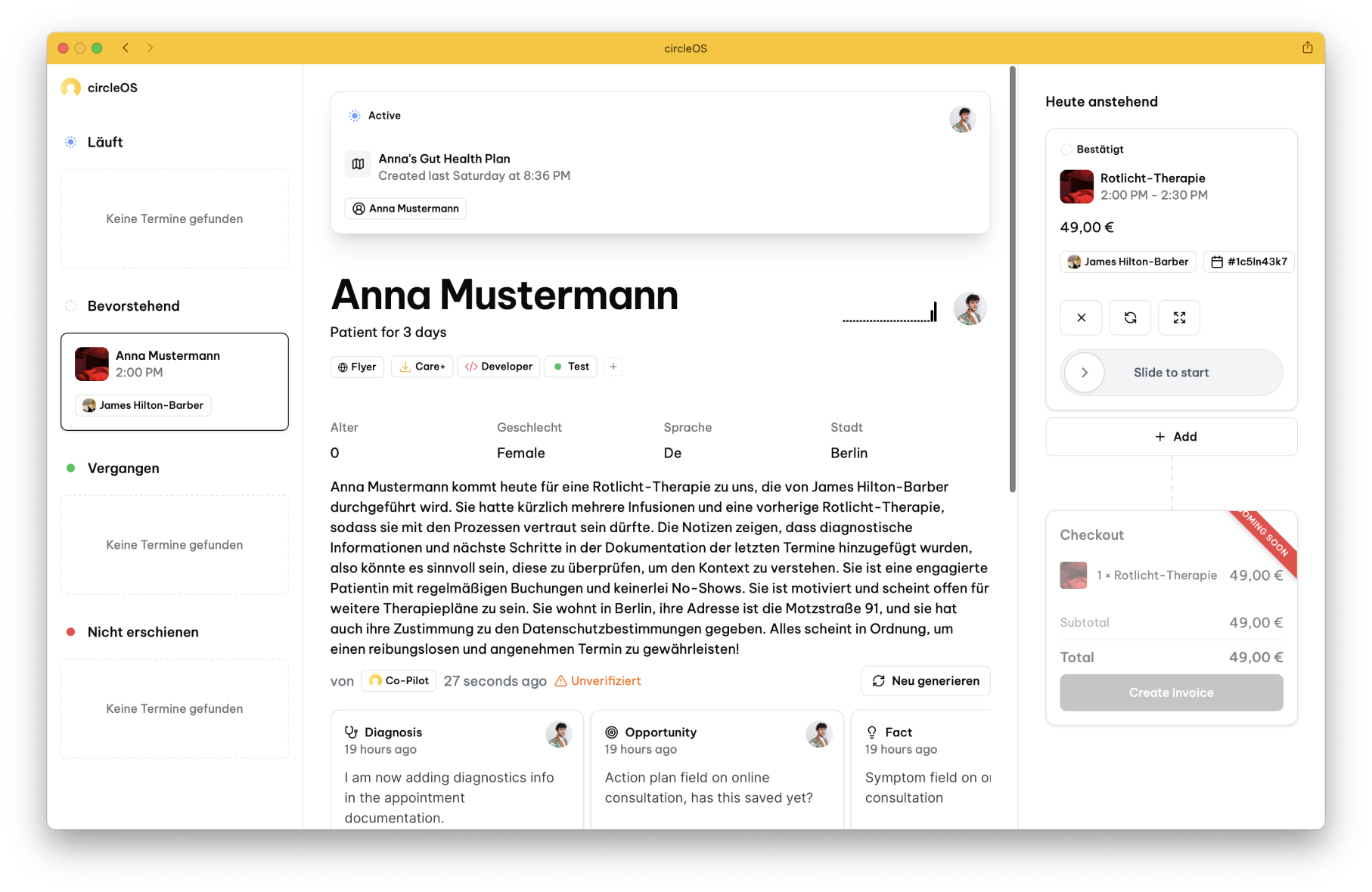
Live Mode is the day-of-visit workspace. It keeps today's schedule, the active patient, and the visit cart together so staff can move through a consultation without jumping across multiple pages.
Layout
Live Mode works as a three-part layout:
| Area | Purpose |
|---|---|
| Left sidebar | Today's bookings for the selected location, grouped by status |
| Main workspace | Patient context for the selected booking |
| Right cart | Visit actions such as forms, diagnoses, purchase tasks, and the checkout entry point |
Day overview
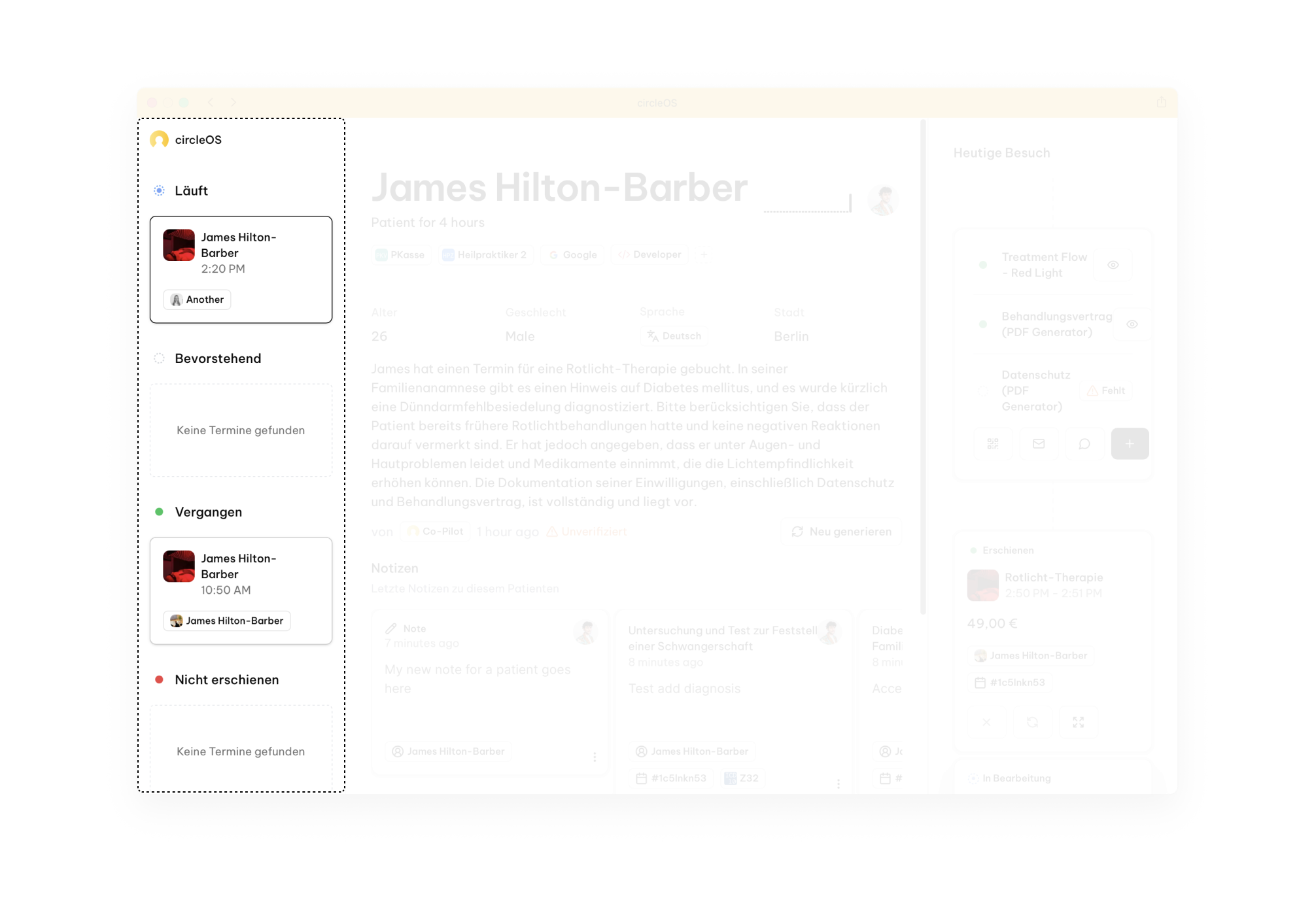
The left sidebar lists today's bookings as cards for the active location. Use the location switcher plus the provider, service, and variant filters to narrow the list. Team members whose employee profile is linked to a provider also get Show my appointments only.
Bookings are grouped into four sections:
- In progress — visits currently underway, plus visits that just finished and are still being kept in today's working list
- Upcoming — confirmed appointments still ahead
- Past — visits already marked as completed for the day
- No-show — patients who did not arrive
Each card shows the patient and visit context for that booking. Visits that have started display a progress timer against the expected duration. The timer turns red when the visit runs over.
Click a card to make it the active visit.
If ad hoc bookings are enabled for your workspace, you can also create a same-day walk-in directly from the sidebar.
Patient workspace

The centre workspace shows the selected booking and the patient's recent context. In a typical visit you may see:
- Patient details for assignment, tags, insurance, and key profile information
- Pinned note for important long-running context
- Briefing for the visit summary
- Plans, test results, and notes
- Recent appointments, purchases, and invoices
Some sections only appear when there is relevant data for the selected patient.
Visit cart
The right-hand cart is where you move the visit forward.
Visit status
When available, use the visit-status dropdown near the top of the cart to track where the main visit is. This control appears on the day's primary booking while that booking is still in the confirmed state.
| Status | Meaning |
|---|---|
| In Waiting Area | Patient is in the waiting area |
| In Treatment | Consultation is underway |
| Checkout | Ready for billing |
| No-Show | Patient did not arrive (opens a confirmation before marking) |
Diagnoses
The diagnoses card shows diagnoses recorded today and suggests recent codes from the last two months. Accept a suggestion with one click or search for a new code.
Forms and purchases
Pre-appointment forms appear here when forms are enabled for Live Mode or when the selected location has forms preview turned on. This is also where staff can send the shared patient forms link by QR, email, or SMS, or upload a finished PDF if the patient already completed the form outside the portal.
Below that, the cart shows today's visit bookings for the same patient, diagnosis tools, purchase tasks, and the checkout control.
Checkout
Use Slide to checkout to open the billing flow for that patient's billable bookings from today.
Live Mode collects the current day's confirmed, in-progress, and completed visit bookings for that patient, then leaves out anything that is not ready to bill. If you open checkout too early, circleOS shows the warning and keeps unfinished visits out of the checkout set.
The checkout flow now continues in a dedicated full-screen sequence. In a typical visit, staff move through:
- a review step
- an invoice queue step
- payment or mark paid, depending on the payment method
- a final completion screen
See Checkout for the billing details.
When to leave Live Mode
Live Mode is optimised for today's visits. Open the full record when you need the complete patient profile, rescheduling or deeper booking editing, full lab-order management, or detailed plan work.
Related: AI Briefings, Scheduling, Forms in Live Mode