
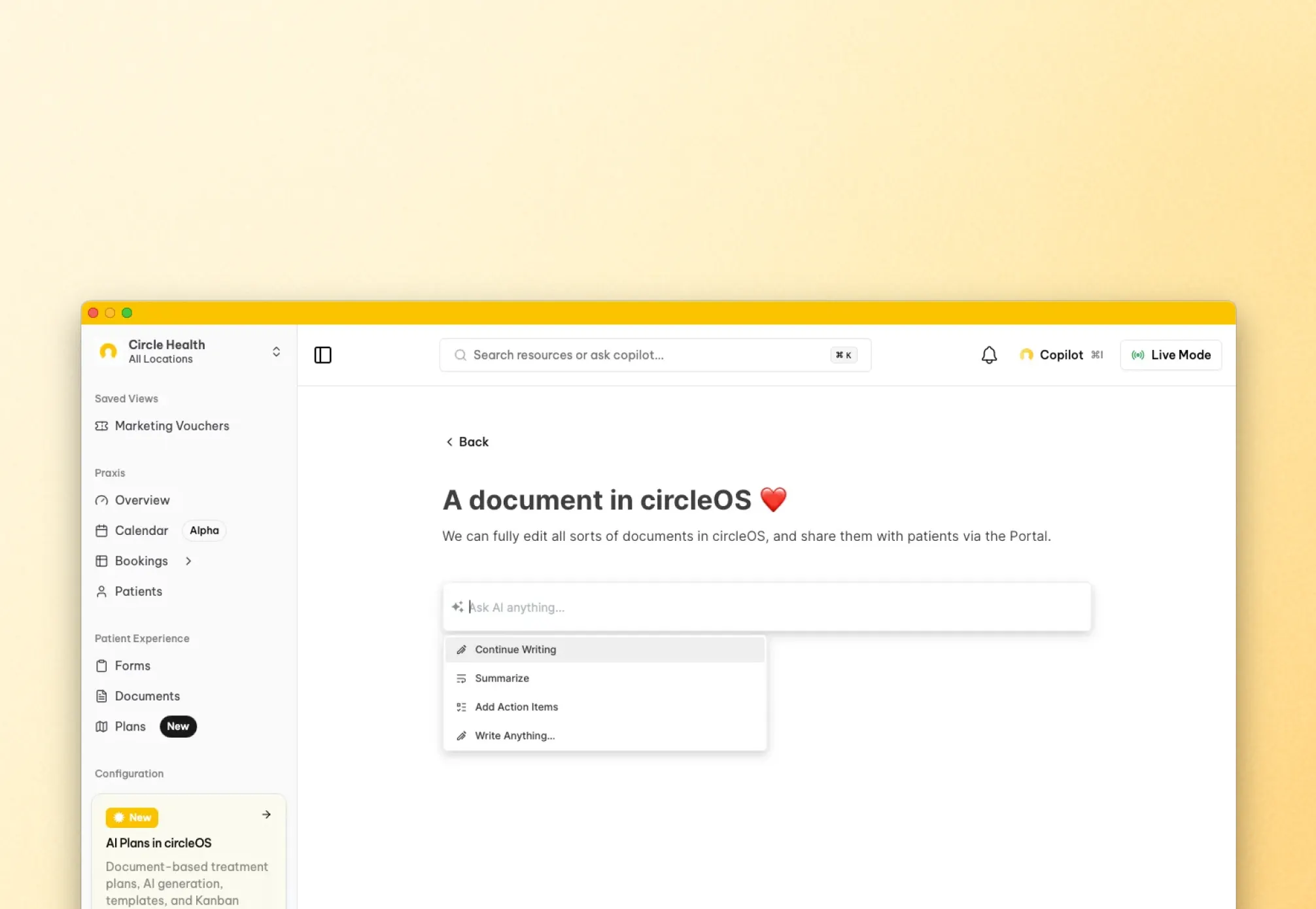
Documents are the patient-facing side of writing in circleOS. Use them for letters, summaries, treatment plans, test results, uploaded PDFs, and other formal records you may want to share with a patient.
Creating a document
Create a document from the Documents page or from a patient-specific workflow, such as a patient profile or plan.
The main Documents page gives you two direct actions:
- Create Document — start a new block-style document. First choose Blank or a template, then confirm the basics such as title, document type, patient, and location. If you start from a patient or workflow context, circleOS can prefill some of that for you.
- Upload Document — attach an existing file and store it as a document. Uploaded files open in the PDF viewer rather than the block editor.
Some workflows also offer AI-assisted document generation. Treat that as an optional shortcut, not as the default document flow.
Most documents you create manually use one of these types:
| Type | Purpose |
|---|---|
| Generic | General-purpose documents |
| Treatment plan | Clinical treatment plan content |
| Test results | Lab results and diagnostic reports |
You may also see invoice-related documents in circleOS, but those are usually created from invoice workflows rather than from the standard document creation flow.
Editing
Block-style documents use the editor described in Using the Text Editor. Uploaded files stay in the PDF viewer instead.
Two features are especially useful:
- Slash commands (
/) — type/to add structure such as headings and lists, or to insert supported linked blocks where that editor allows them. - Mentions (
@) — type@to link supported circleOS records inline. Each mention becomes a clickable link.
Inline AI
When enabled, the editor also includes inline AI actions for drafting or refining content. Some document workflows add extra AI tools on top of the shared editor.
For block-style documents, saving your edits and publishing the patient-facing version are separate steps. Keep editing until the internal version is right, then publish or republish when you are ready to share it.
Publishing and sharing
Documents start as private and stay internal until you publish them.
To share a document with a patient, publish it from the document detail view. The patient-facing version is the published copy, not just whatever is currently open in the editor.
Sub-resource documents
Documents linked to a plan, invoice, or lab order should be published from the parent record rather than from the document itself. This includes lab-order documents such as results summaries or certificates. The document detail page blocks direct publishing for these sub-resource documents so the parent workflow stays in control.
Republishing after edits
If you edit a published block-style document later, circleOS can warn that the published version is out of date. Republish it so the patient-facing copy matches the latest content.
Where documents appear
- Patient profile — all documents linked to that patient
- Documents page — browse and manage documents across the workspace
- Plans, invoices, and lab orders — parent records link directly to their related documents
Documents vs. notes
Use a document when the content should be patient-facing or kept as a formal record: letters, summaries, treatment plans, and results. Use a note when the content is for the care team only: observations, visit documentation, and follow-up points. See Notes.