
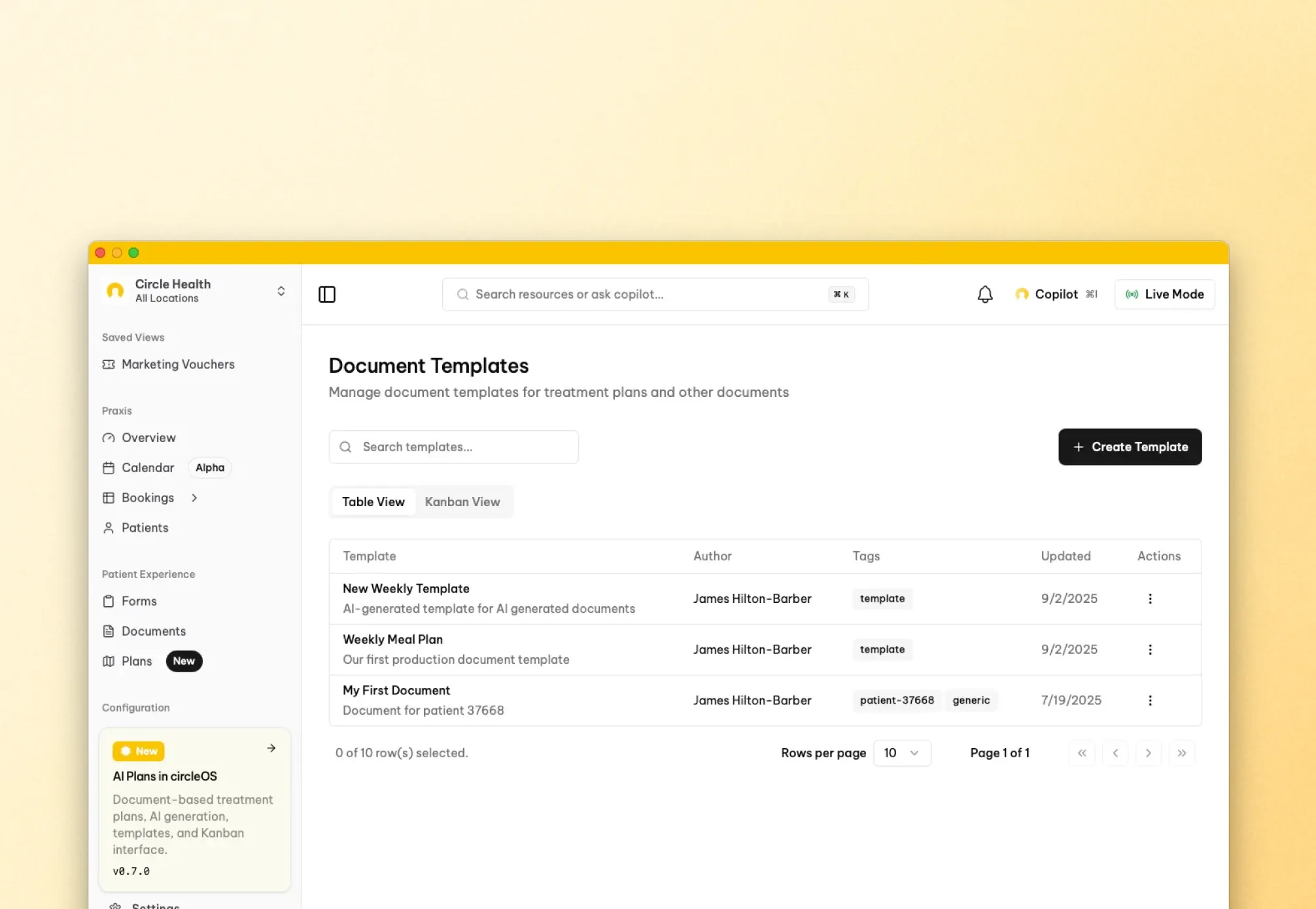
Templates are reusable starting points for structured writing. They help your team begin with the same headings, prompts, and layout instead of rebuilding the same structure each time.
In circleOS, templates are block-style writing templates. They are used for notes and block-style documents, not for uploaded PDF files.
Manage them in Settings → Workflow → Templates.
What templates are used for
Templates are used in these places:
- Notes: apply a template while writing a note
- Documents: choose a blank start or a template when creating a block-style document
- Some plan and AI-assisted document flows: use a template as the starting structure or as guidance
Creating and managing templates
From Settings → Workflow → Templates you can create, open, edit, duplicate, and delete templates. Editing happens inside the template itself once you open it.
Create a Template
- Open Settings → Workflow → Templates.
- Click the Template button.
- Give the template a clear title.
- Add an optional summary so teammates can find the right one quickly.
- Create the template.
- circleOS opens the new template immediately in the editor.
Manage an Existing Template
From the template list, you can:
- Open the template
- Edit the template content
- Duplicate it when you want a variation without starting from scratch
- Delete it if your team no longer uses it
If you edit a template directly, those changes affect future notes and documents created from that template. They do not rewrite notes or documents that already exist.
Applying templates
Templates behave a little differently depending on what you are creating:
- Notes let you apply a template while editing. If the note already has content, circleOS asks you to confirm before replacing it.
- Documents let you choose Blank or a template first. The selected template is copied into the new block-style document before you finish the basic details.
- Some plan and AI-assisted document flows can also use a template as the starting structure or optional guidance.
After a note or document is created, changing the original template does not update it automatically.
For workflow-specific details, see Notes, Documents, and Circle Intelligence.
Good template habits
Templates work best when they are easy to scan and easy to reuse.
- Keep section titles short and obvious
- Use prompts only where they genuinely help the writer
- Add a short summary when templates have similar names
- Duplicate a working template before making a big variation
- Review older templates regularly and remove the ones your team no longer uses